
Gaming is a popular way to relax, learn new skills, and connect with other players. However, lag, low frame rates, and poor settings can make games less enjoyable. Gaming Tips PBLinuxTech can help readers understand how to improve game performance, adjust graphics, solve common problems, and build better playing habits. Smooth gameplay does not always require an expensive computer. With the right settings, regular maintenance, and simple changes, players can enjoy a more stable and comfortable gaming experience.
Understand Your Device Before Playing
Before changing any settings, learn about your computer or gaming device. Check the processor, graphics card, RAM, storage space, and operating system. Every game has its own system requirements, so compare these requirements with your device’s specifications.
If your computer meets the recommended requirements, you may be able to use higher graphics settings. If it only meets the minimum requirements, lower settings may provide better performance. Understanding your hardware helps you make useful changes instead of wasting time on settings that do not solve the real problem.
Adjust Graphics Settings for Better Performance
Graphics settings have a direct effect on how a game looks and runs. High-quality shadows, reflections, and visual effects can use a large amount of graphics processing power. Lowering some of these options may improve frame rates, especially on older computers.
Start by reducing shadow quality, reflections, and demanding effects. Keep texture quality at a level that suits your graphics memory. You can also test different resolutions to find a good balance between image quality and performance.
Change one setting at a time and test the game after each change. This method helps you understand which settings make a real difference. The best setup is one that provides clear visuals and stable performance without putting too much pressure on your device.
Keep Your Drivers and Games Updated
Drivers help your operating system communicate with your graphics card and other hardware. Old or damaged drivers may cause crashes, visual problems, or poor performance in some games. Updating them through official sources can help solve these issues.
Check the official driver software or website for your graphics hardware. You should also install suitable operating system updates and game patches. These updates may include bug fixes, security improvements, and compatibility changes.
However, an update does not always increase performance. Read the update details and follow official instructions if a new version causes problems. Keeping software updated is useful, but choosing the correct version for your hardware is equally important.
Close Unnecessary Background Applications
Background applications can use RAM, processor power, and storage resources while you play. Running many browser tabs, downloads, editing tools, and recording programs at the same time may reduce available resources for your game.
Close applications that you do not need. On Windows, use Task Manager to check which programs are using the most memory or processing power. Pause large downloads if they cause problems during online matches.
Do not disable security software or unknown system processes just to improve performance. These actions may create new problems. Instead, focus on unnecessary applications and keep enough resources available for the game.
Understand FPS, Lag, and Stuttering
FPS means frames per second. It measures how many frames a game displays each second. A higher frame rate can make movement look smoother, but consistent frame delivery is also important.
Stuttering happens when the game does not display frames evenly. Network lag is different because it affects communication with an online server. Input delay refers to the time between pressing a button and seeing the result.
Gaming Tips PBLinuxTech should encourage players to identify the exact problem before changing settings. If the game struggles offline, check graphics settings and system resources. If it works well offline but responds slowly online, investigate the internet connection and server conditions.
Improve Your Internet Connection
A stable connection is important for multiplayer games. High ping and packet loss can make opponents move unpredictably or cause delayed responses. Fast download speeds alone do not guarantee a reliable gaming connection.
Use an Ethernet cable when practical because it can provide a more stable connection than Wi-Fi. If you use wireless internet, keep your device near the router and reduce interference. Pause unnecessary downloads and streaming on your network when they affect gameplay.
You can also check whether the game allows you to select a nearby server region. A closer server may reduce latency, although routing and server conditions also matter. If problems continue, test other online services to see whether the issue affects your entire connection or only one game.
Explore Linux Gaming Options
Linux users have several ways to enjoy computer games, but compatibility can vary. Some games support Linux directly, while others may need additional compatibility tools.
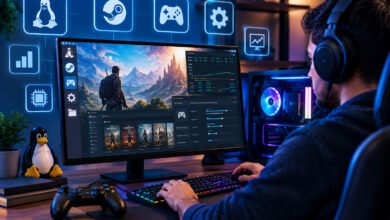
Steam Proton is a compatibility layer that helps many Windows games run on Linux. Before installing a game, check its compatibility, graphics requirements, and any known issues. Performance can differ between games and hardware.
Keep your Linux distribution and graphics drivers updated through trusted sources. Follow official instructions when changing game settings or enabling compatibility options. Avoid copying unfamiliar terminal commands without understanding their purpose, as some commands can change important system files or settings.
Improve Controls and Gaming Skills
Smooth gameplay also depends on the player’s skills. Poor control settings can make aiming, movement, and reactions more difficult. Adjust mouse sensitivity, controller settings, and key bindings to suit your needs.
Avoid changing your controls too often. Once you find a comfortable setup, practise with it until the movements feel natural. Learn the maps, understand game objectives, and study the abilities or tools available in your chosen game.
You can improve faster by focusing on one skill at a time. For example, practise aiming, movement, teamwork, or decision-making during separate sessions. Review your mistakes and consider what you could do differently next time.
Keep Your Gaming Device Cool
Overheating may cause a computer to reduce its performance to protect its components. This can lead to lower frame rates, unexpected slowdowns, or shutdowns.
Keep the air vents clear and place laptops on firm surfaces that allow airflow. Clean accessible vents according to the manufacturer’s instructions. Check temperatures with a trusted monitoring tool if you suspect overheating.
Avoid blocking cooling vents or changing hardware settings without proper knowledge. If your device becomes unusually hot or shuts down repeatedly, follow the manufacturer’s troubleshooting advice or seek professional help. Good cooling and regular maintenance can help your hardware operate more reliably.
Read More: epleys.com
Avoid Common Gaming Mistakes
One common mistake is changing many settings at once. This makes it difficult to identify which change helped or caused a problem. Another mistake is downloading unknown optimization programs that promise instant performance improvements.
Use trusted software, check official recommendations, and test changes carefully. Do not assume that every gaming tip will work for every computer. Different games have different requirements, and a setting that helps one system may not help another.
Players should also take regular breaks, maintain a comfortable sitting position, and get enough sleep. A balanced routine can support focus and make gaming more enjoyable over time.
In Short
Gaming Tips PBLinuxTech provides a useful topic for learning about game settings, computer maintenance, internet stability, Linux compatibility, and personal gaming skills. Players can begin by identifying their main problem, checking their device, and making small changes one at a time.
The most effective approach is to combine suitable graphics settings, updated software, stable network conditions, proper cooling, and regular practice. These steps cannot guarantee perfect performance, but they can help many players find the cause of common problems and enjoy a smoother gaming experience.
FAQs
What are Gaming Tips PBLinuxTech?
They refer to gaming-related advice about performance, settings, troubleshooting, Linux gaming, and ways to improve gameplay.
How can I make games run more smoothly?
Lower demanding graphics settings, close unnecessary applications, update suitable drivers, and check your device’s system requirements.
Does faster internet always reduce gaming lag?
No. Ping, packet loss, server distance, and connection stability also affect online gameplay.
Can I play Windows games on Linux?
Yes, many Windows games can run on Linux through tools such as Steam Proton, but compatibility varies by game.
Why does my game stutter even with good FPS?
Uneven frame delivery, background applications, overheating, limited system resources, or software issues may cause stuttering. Check these factors one at a time.