

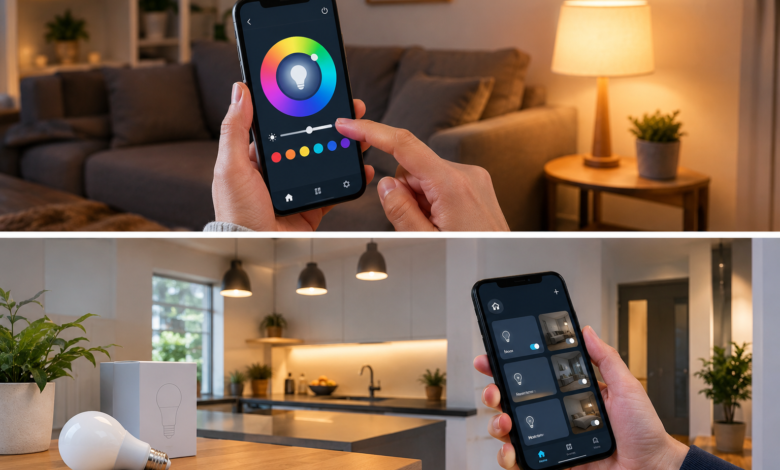
The Sengled App helps users control compatible smart lights and other supported home devices through a smartphone. It offers useful tools such as remote lighting control, brightness adjustment, schedules, scenes, and room grouping. Users can create lighting settings for different activities and manage their devices more easily. However, available features depend on the product model, connection type, and compatibility requirements. Understanding these details can help users decide whether the app is right for their smart home.
What Is the Sengled App?
Sengled Home is a smart-home application developed by Sengled Optoelectronics Co., Ltd. It allows users to set up, manage, and monitor compatible Sengled products from a mobile device. The app replaces the older Element Home application for its supported product range.
The main goal is to make lighting control simple. Instead of using a physical switch for every light, users can manage compatible devices through the app. They can also organize lights by room, create schedules, and use supported automation features. Some Sengled products require a hub or a different app, so checking compatibility is important before setup.
Main Features of the Sengled App
One of the most useful features is smart lighting control. Users can turn compatible lights on or off and adjust their brightness from a phone. Supported color bulbs also allow users to select different colors and white-light temperatures. These options help create suitable lighting for reading, studying, relaxing, or spending time with family.
Another useful feature is device grouping. Users can arrange lights into rooms, such as the bedroom, kitchen, or living room. They can then control several lights together instead of opening each device separately. This saves time and makes the system easier to manage, especially in homes with multiple smart bulbs.
Remote Control and Automation
The app supports remote control through an internet connection and Sengled’s cloud platform. This means users can check the status of compatible devices and control their lights while away from home, provided the required connections and services are working.
Automation makes daily lighting tasks easier. Users can create schedules to switch lights on or off at selected times. Supported bulbs may also offer wake-up and sleep routines, which gradually brighten or dim the lighting. These options help users build a lighting routine without needing to adjust every light manually.
Scenes, Routines, and Sensor Support
Scenes allow users to save lighting settings for different situations. For example, a user can create a relaxing scene with soft light or a brighter scene for reading. When supported, one scene can control several bulbs or rooms at the same time.
The app also supports certain sensor-based actions. Compatible motion sensors can trigger lighting when movement is detected, while supported door sensors can start actions when a door changes state. These features can improve convenience and help automate common tasks. However, the required sensors and compatible devices must be available and configured correctly.
Smart Home Integration
The app provides setup guidance for selected third-party services, including Amazon Alexa, Google Assistant, Apple HomeKit, and IFTTT. With compatible products and a supported connection, users may be able to control lights through voice commands or connect lighting actions to other smart-home routines.
These integrations can make a connected home easier to manage. For example, a supported voice assistant may allow users to turn a light on without opening their phone. However, not every Sengled product supports every service. Users should check the official compatibility details before choosing a device or planning an automation system.
How to Download and Set Up the App
Getting started is usually simple. Follow these steps to connect a compatible Sengled product:
- Open the official Apple App Store or Google Play Store.
- Search for Sengled Home and check that the developer is Sengled.
- Install the app and create an account or sign in if required.
- Install the compatible light according to its product manual.
- Open the app and select the option to add a device.
- Follow the on-screen instructions to complete pairing.
- Test the light and adjust its settings.
Some Wi-Fi products require a compatible 2.4 GHz Wi-Fi network, while certain Zigbee devices need a compatible hub. Bluetooth products may require a separate Sengled application. Always follow the instructions for your exact model rather than assuming that every device uses the same setup process.
Benefits of Using the App
The main benefit is convenience. Users can control compatible lights from one place and reduce the need for repeated manual adjustments. Room grouping makes it easier to manage several lights, while scenes provide quick access to saved settings.
Scheduling is another advantage. Lights can follow a daily routine, which may be helpful during busy mornings or evenings. Remote access also allows users to check device status when they are away. In addition, supported performance features record device activity and show cumulative power-consumption information.
These tools can make lighting management more flexible. However, energy information does not guarantee lower electricity bills. Actual savings depend on bulb efficiency, usage habits, schedules, and local electricity costs.
Common Problems and Troubleshooting
Some users may experience pairing failures, connection problems, or difficulties linking the app with another smart-home service. These issues can occur because of network settings, incompatible products, outdated software, or temporary service problems.
Start by checking that the light has power and that the phone has a working internet connection. Confirm the product’s Wi-Fi, Bluetooth, or hub requirements. Then restart the app and check for available updates. If pairing still fails, follow the official instructions for that model.
Avoid resetting a device immediately unless the product guide recommends it. A factory reset may remove existing settings and require the device to be configured again. If the problem continues, contact Sengled Support for model-specific help.
Read More: epleys.com
Privacy, Security, and Compatibility
Before using any smart-home app, review its privacy policy and the permissions it requests. The app-store privacy information indicates that certain data categories may be collected, depending on the features used. Users should keep their app updated and protect their account with a strong, unique password.
Compatibility is equally important. The app is designed mainly for supported Sengled products, not every smart-home device on the market. Check the product model, mobile operating system, network requirements, and any required hub before buying or installing a device.
Is the Sengled App Worth Using?
The app can be a useful choice for people who own compatible Sengled smart lights and want simple controls, schedules, scenes, and remote access. Its room grouping and automation features can also help users manage several lights more efficiently.
However, it may not be the best option for someone who wants one application to control many unrelated brands without checking compatibility. The best choice depends on the devices already in the home and the features the user needs. Reviewing official product information before setup can help avoid common problems.
FAQs
What is the Sengled App used for?
It helps users control, organize, and automate compatible Sengled smart lights and supported home devices.
Is the Sengled Home app free?
The app is listed as a free download. Compatible bulbs, hubs, and other accessories may cost extra.
Can I control my Sengled lights remotely?
Yes, supported products can be controlled remotely when the required internet connection and services are working.
Does every Sengled bulb work with Sengled Home?
No. Compatibility depends on the product and its connection type. Some devices require a hub or a different app.
What should I do if the app cannot find my light?
Check the power, network requirements, and product compatibility. Then follow the official pairing guide or contact Sengled Support.